For clubs For athletes Guide Pricing About Contact Support
← User guide Part 2 · Athletes

For athletes

This part is for anyone who shoots, whether you belong to a club or train on your own. Independent athletes have all the same training tools; the few club-only screens are marked, and gathered at the end.

Your bottom tabs are Home, Log, Book, Scoreboard, Competitions, and Stats. Access profile, history, notifications, and settings from the header.

Your home dashboard

Home is the motivational cockpit. The gamified summary sits at the top so it is the first thing you see; schedules and competition lists start collapsed underneath.

  • Tap Log a session to get started.
  • Your personal best shows match and final totals for each discipline.
  • Your latest session includes its target plot.
  • View your week streak and badges.
  • Check your standing and category rank.
  • View your coach, upcoming competitions, and schedule.
Athlete home screen showing a Log a session button, personal best cards, latest session, week streak and badge progress.
Home, for a club athlete.

Logging a session

Logging a session is built to be fast. A session has three phases: Setup, Session, and Debrief.

1 Open the Log tab

The Log tab offers Start session, Competition simulation, and History.

Underneath sits a running statistics summary you can filter by discipline and period, so the tab is useful even when you are not about to shoot.

Tap Start session.

Log tab landing screen with Start session, Competition simulation and History, above a statistics summary.
The Log tab.

2 Phase 1 · Setup, before you pick up the gun

Here you say what kind of session this is. Everything is optional except the discipline and the scoring mode.

  • Session date defaults to today. Tap Change date to log a past session.
  • Select Air pistol or air rifle.
  • Choose a session length. The keypad locks when you reach the limit.
  • Precise scoring records decimals, while Quick scoring uses whole rings for air pistol.
  • Turn on target plotting to record shot placement. It works in precise and quick scoring alike.
  • Games sits closed under the two match modes. Tap it to open Race to 100, Streak and Blank Target.
  • Set session goals like trigger release or follow-through, and add goals of your own.
  • My tags & goals sits directly under the goal chips, for writing a new one on the spot.
  • Track pellet batch and cylinder pressure optionally.

Tap Start session when ready.

Session setup showing the phase rail, session date, discipline, session length and precise or quick scoring.
Phase 1, Setup.

3 Phase 2 · Session, on the line

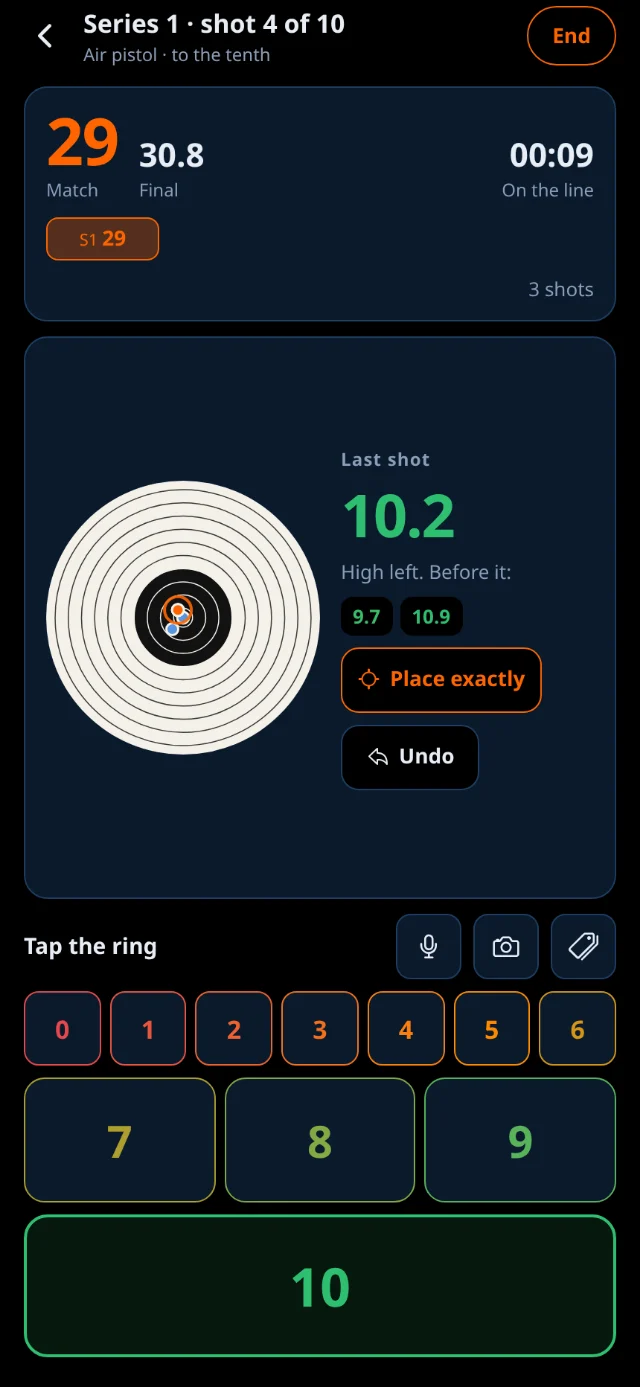
This is the tracker you use between shots. It is deliberately quiet, so you can work it without really looking at it.

  • Use the two-step keypad by tapping the whole ring then the tenth. The colors guide you.
  • The top summary shows shot count and running total.
  • Rate your hold stability, follow through, trigger pull, and stance.
  • Use one-tap tags for faults and successes.
  • Review, replace, or remove shots in the editor without leaving the main screen.

Tap End session when finished.

The logging keypad three shots into a session, with a running total and process ratings.
Phase 2, three shots in.

4 Phase 3 · Debrief, gun cased

Now you reflect, and typing is welcome.

  • Review your session scores and average ratings.
  • Rate the session effort from 1 to 10. RPE is Rate of Perceived Exertion, how hard the session felt; tap the ⓘ beside it for the definition. The keys run green through red, so the direction of the scale is clear before you read the labels.
  • Select any drills you practiced.
  • Add free text notes.
  • Read back the goals you set and the chips you tapped on the line.

Tap Save session. Discarding will lose your data.

The debrief phase with a session summary, an RPE scale, drills and a notes field.
Phase 3, Debrief.

Your own goals and tags

A score says how you shot. A goal says what you were trying to do, and a tag says what happened while you did it. Both are yours to write, and together they are what turns a column of numbers into training you can read back.

1 Set the goal before the first shot

Setup has a Session goals card carrying six built-in goals: trigger release, follow-through, body stance, breathing, sight alignment and mental. Tap as many as apply and the card header counts them.

What you picked is read back to you in the debrief, saved with the session, and travels into your data export and into any review you ask your coach for.

Naming the intention before you shoot is what makes a session answerable afterwards. The question stops being what did I score and becomes did I do what I came here to do.

2 Write your own

My tags & goals sits directly under the goal chips in Setup, and again on the Log tab for quiet upkeep between sessions. Open it, choose Goals, Faults or Successes, type the chip and tap Add.

  • Goal chips join the six built-ins in Setup, in the same row.
  • Fault and success chips join the one-tap chips you tap on the line, in Phase 2.
  • Tap the ✕ on a chip to delete it. Sessions you already saved keep the wording they were logged with.

Use the words your coach actually uses with you: wrist lock, grip pressure, first-shot nerves. A list you wrote yourself is a list you will really tap between series, and a chip beats a sentence you would have to type standing at the bench.

What they give you back

  • Your history reads as intent, not only as score. A session shot against a trigger release goal and tagged Snatched Trigger explains its own bad series months later.
  • Your coach sees them. Goals and chips come through on a session review, so the feedback lands on what you were working on rather than on the total alone.
  • They are in your export. Every session sheet carries its goals, in both the spreadsheet and the PDF report.
  • They earn you a badge. The Analyst wants ten sessions logged with the whole picture: pellet batch, hold and follow-through ratings, at least one goal and at least one tag.
One goal beats five A session with a single goal you actually held is worth more than one with every chip lit. Pick the thing you would change if you could only change one, and let the rest of the session be ordinary.
Mobile app only

Calling your shots out loud

Between shots your hands are on the grip and your eyes are downrange. Above the keypad there is a microphone: tap it and say the shot the way you read it off the target.

  1. Tap the microphone above the keypad.
  2. Say the ring, tenth, and placement. For example, 'eight five top right'.
  3. Listen for the tones. A short blip means a word registered; a different, rising pair means the shot was saved. You never have to break position to check that it worked.
  • Say 'center' for no particular placement, or 'scratch' to restart.
  • With target plotting off, the shot goes in as soon as you have said the score. In quick mode, one number is the whole shot.
  • The keypad is always available if needed.
  • Speech recognition supports English, Greek, German, Spanish, French, and Italian.
Your voice never leaves the phone Recognition runs instantly on your device without uploading anything.

Target plotting

Turn on target plotting in Setup to capture placement, not just score. Plotting is a property of the session rather than of how finely it is scored, so it works in quick whole-ring scoring exactly as it does in precise: the compass follows whichever key completes the shot.

  1. Enter the shot’s value on the keypad as usual.
  2. Tap the direction on the compass.

The session displays on a target plot with correct ISSF proportions.

Note The plot is honest about what it is: a reconstruction from a tapped direction, not electronic-target coordinates. It is more than enough to see your grouping and read your misses, which is what it is for.
The one mode that cannot plot Blank Target hides the target while you shoot, so there is nothing to plot on. It is the only mode that disables the switch, and it says why rather than leaving it on and quietly ignoring you.
An expanded session showing the target plot, per-series targets and a numbered shot grid.
A plotted session, reviewed afterward.

Game modes

Game modes ride the exact same logging screen, so there is nothing new to learn. They change only the goal and what the summary shows. In Setup they sit behind Games in the scoring card, closed by default because most sessions are ordinary match scoring. Tap Games to open the three, and the card names your pick even when the group is closed again.

  • Race to 100: shoot until you reach 100 in the fewest shots.
  • Streak: track your consecutive tens.
  • Blank Target: focus on form with the score hidden.

Practice history, and replaying a session

Open History to browse every session.

1 Read the cards

Each card shows the date, discipline, shot count, and score.

A gold PR badge marks a personal best session.

Practice history list with one card per session showing date, score and a series sparkline.
History, newest first.

2 Open one

Tap a card to expand it.

  • View series scores and target plots.
  • See a numbered grid of every shot.
  • Review your debrief ratings and notes.
  • Share, request a review, or delete the session.
An expanded session card showing series scores, the target plot and the numbered shot grid.
One tap expands the whole review.

3 Watch it back

Tap Watch the session to replay your shots.

Use Play, Pause, or the scrubber to review your session's progression.

Generate a branded image to share your session.

Deleting a session Tap Delete to permanently remove a session after confirming.
The session replay player showing the full target with the group building up and playback controls.
The replay, mid-playback.

Your statistics

The Stats tab provides personal analytics and plain-language insights based on your own sessions.

Filter by discipline and pick a period across the top: your latest session, your last five, or the past week, month, year or all time. Everything below re-reads itself against whatever you chose.

The top of the stats tab with discipline and period filters above the first chart.
Filters first, then the charts.

Reading down the screen:

  • Match pressure: Your practice average beside your competition average, so you know before entry closes whether a gap is technique or nerves.
  • Fatigue: Your first ten shots against your last ten, to spot where a session starts to slip.
  • Consistency: How tightly your scores cluster.
  • Technique radar: Hold, follow through, trigger pull and stance plotted against a club baseline. This uses the 1-to-5 ratings you tap during a session.
  • Score trend, weekly volume and a shot heatmap on the target.

Your profile has an Analytics card plotting your score against your RPE over the last 90 days, flagging high-effort sessions. Scores dropping while effort stays high indicates overtraining.

The analytics screen scrolled to the fatigue card, with several charts in view.
Fatigue, consistency and the trend charts.

Competition simulation

A range officer in your pocket. It runs the official ISSF 10m sequence and calls every command out loud at exact match cadence, making match rhythm routine. It works wherever you can hang a target.

  1. Open the Log tab and tap Competition simulation.
  2. Choose Qualification for the full match, or Finals for the 24-shot final.
  3. Press start, put the phone down, and shoot. A large countdown, a live caption of the last command, and Pause / Resume / Stop are on screen, but the point is the voice.

Before you start and while it runs, you see the whole sequence as a step list, highlighting the current step and ticking off completed ones. Tap Skip to jump to the next step.

The competition simulation screen with mode selection and the full ISSF step list.
The simulator, before starting.

Achievements and the scoreboard

Achievements

Every badge is earned from something you actually did. Nothing is random and nothing can be bought.

  • Milestone badges for pellets fired, tens shot, competition wins and weekly practice streaks.
  • One-off badges for a perfect series, breaking a personal best, returning after a break, time of day and club anniversaries.
  • Practice-habit badges like Well-Rounded (drills from all four categories) and Iron Will (five sessions logged at maximum effort).
  • Precision badges for a single shot or a single session: Dead Center for a 10.9, Heartbreak for a 9.9, Clutch Finisher for a 10.5 or better on the very last shot, and The Machine for forty inner tens in one session.
  • Consistency badges for the shape of your training: Marathon Session, Weekend Warrior, Four Seasons, New Year’s Resolution, Gearhead, Coach’s Pet, Data Junkie, and The Analyst for ten fully detailed sessions.
  • Leaderboard medals in gold, silver and bronze for the top ranks, computed live.

Tap any badge, earned or locked, and a card tells you what it is and what it takes. A locked badge is a target, so nothing in the case is a mystery.

Every new badge drops a notification, and your progress toward the next one shows on Home.

Most Valuable Athlete One badge is not earned from a counter: Most Valuable Athlete is awarded by hand, and it stays out of your case entirely until it is yours.
The achievements screen showing earned badges and progress toward the next tier.
Your badge case.
Club athletes only

The scoreboard

The Scoreboard tab is your live club leaderboard. Filter by category to see top ranks with medals and your own highlighted row. It updates in real time.

Only precise sessions count toward it, so your scoring mode in Setup matters.

The club scoreboard with category filters and ranked athletes.
The club board.

Booking lane time

The Book tab manages your upcoming training calendar, varying whether you shoot at a club or on your own.

Club athletes only

Booking a club lane

  1. Pick a date and the lane type, pistol or rifle.
  2. The app shows available one-hour slots in your club's timezone, with a count of free lanes.
  3. Tap a slot to request it. This reserves a lane immediately to avoid double-booking, pending coach confirmation.

Swaps: Request a swap to trade a slot with a teammate on the same day. If accepted, your bookings exchange while keeping lane assignments, saving the swap in your history.

Training your coach set you If your coach attached a training program, you see the drill plan on the booking. You can also get a list of drills. Tick one off when done, or tag the same drill in a session debrief to complete it automatically.
The booking screen showing a date picker, lane type and available one-hour slots.
Open slots for the chosen day.
Independent athletes

Scheduling your own training

Without a club, the Book tab acts as a personal calendar built on your own training grounds, such as a commercial range, visiting club, or home setup.

  1. Add your training grounds from Profile → Training grounds.
  2. In Book, pick a date, choose a training ground, then your time slot and discipline.
  3. Your slot is scheduled instantly. There is nobody to approve it.

This is what lets you plan a training calendar, attach programs and drills to specific days, and get booking reminders without belonging to a club.

The training grounds screen where an independent athlete adds the ranges they use.
Training grounds.

With at least one training ground saved, the Book tab becomes your own calendar: pick the day, the ground, the time and the discipline, and it is scheduled. Programs and drills attach to these sessions exactly as they do to a club booking, and booking reminders work the same way.

An independent athlete's booking screen with their own training grounds and time slots.
Scheduling a solo session.
Club athletes only

Competitions and coach reviews

Competitions

  1. When staff enter you into a club competition, you receive an invitation in your notifications and on the Competitions tab.
  2. Accept or decline it.
  3. On the day, your relay, lane and start time are on the entry, along with the club gun you have been allocated if you are not shooting your own.

The tab keeps your competition history, including your finishing place, and shows the live scoreboard for each event.

You can only be entered if staff marked you as competition eligible. If you expected an invitation but did not receive one, ask your coach.

The competitions tab showing invitations and past results.
Invitations and history.

Asking your coach to review a session

Want your coach’s eyes on one particular session?

  1. Open the session in your practice history.
  2. Tap Request a review.

Your coach is notified, reads that exact session (its plot, shots and notes), and replies with written feedback tied directly to the shots you fired. You get a notification when the review lands.

Your profile, equipment and fees

Tap your avatar in the header to access your profile settings.

Your profile contains Details, Equipment, Analytics and Settings.

The profile hub with links to details, equipment, analytics and settings.
The profile hub.

Details

Your name, date of birth, phone, photo, ISSF ID and shooting-club ID.

  • Your club ID receives a verification mark once the club confirms it. Changing the ID removes the mark until it is re-verified.
  • If you are under 18, guardian fields appear so the club can contact a responsible adult.
Consent, and consent for juniors When required, you must agree to the privacy notice. For athletes below the age of digital consent in their club's country, a parent or guardian must agree on their behalf. A panel appears under the guardian details where parents confirm on the device or staff record it from a signed form. The guardian's name and email must be saved first.
Profile details with name, date of birth, phone and ID fields.
Editing your details.

Equipment

Your own guns and pellets, kept separately from the club's armoury.

  • Add a gun from the catalog of known 10m air guns, or enter a custom one, tracked by serial number.
  • The manufacturer field is a searchable list. If your brand is missing, you can add it to your private list.
  • Guns carry cylinder compliance: the stamped 10-year expiry, a warning as it approaches, and a service flag.
  • Replacing a gun retires the old one cleanly and keeps it for history rather than deleting it.

Your active gun is what appears on your share cards, and what staff see when allocating equipment for a competition.

The equipment screen listing the athlete's own guns and pellets.
Your own equipment.
Club athletes only

Fees

If your club charges membership fees, the Fees screen shows your balance and individual fees.

  • Pay online securely by card through your club's payment account. Card details never reach Mouflon.
  • Or pay cash at the counter and your club records it. Both settle into the same ledger, so the balance you see is always the real one.
The fees screen showing an outstanding balance and individual fees.
What you owe the club.
Independent athletes

The independent athlete

Everything above is yours whether or not you belong to a club. This is the short version of what changes when you train on your own.

What you get, and what is simply not there

  • The whole training app is yours: logging, calling your shots out loud, target plotting, game modes, your own goals and tags, history and replay, statistics, the competition simulator, share cards and achievements.
  • Book becomes your own calendar, built on the training grounds you add in Profile → Training grounds. There is nobody to approve a slot, and programs, drills and reminders work exactly as they do on a club booking.
  • The club-only screens are absent rather than locked: no club scoreboard, no club competitions, no fees, no coach reviews.
  • Your public portfolio is the way you show your training outward, to Instagram or to a sponsor, without a club board behind you.

After 30 days, your account moves to the free tier unless you subscribe to solo premium. Logging itself is always free, so your sessions, streaks and badge counters keep accruing either way.

Joining a club later Your history goes with you. Join a club and every session you have logged comes along; leave one and it stays yours. Nothing you record on your own is trapped in a decision you made at sign-up.
The solo premium screen explaining what the subscription adds.
Solo premium, and what it adds.

Settings

Found in Settings.

The rest of the screen

  • Notifications: toggle push notifications, booking reminders, and mute by category.
  • Mute by category: Bookings, Coaching, Competitions and Achievements can be silenced independently. Muting a category stops push notifications while keeping items in your in-app bell.
  • Public portfolio: your shareable link, and a switch per section deciding what it shows.
  • A published page carries your personal best in both ISSF totals, the target plot of the session that set it, your badges drawn as the badges, and whatever else you switch on. Anything switched off is never sent to the page rather than hidden on it.
  • Password, data export and account deletion.
Athlete settings with each section collapsed.
Settings, closed. One tap opens what you came for.

Appearance

  • Twelve themes: Mouflon Dark, Mouflon Light, Mouflon OLED, Purple Summer, Purple Winter, Blue Lagoon Winter, Olive Grove, Terra Waterfalls, Pastel Sky, Tropical, Coral Bay and Sapphire Gold.
  • System theme follows your device settings between Light and Dark mode.
  • If you never choose, the training area stays on Mouflon OLED, the true-black theme. A chosen theme applies everywhere.
The theme picker open, each palette shown as a swatch in its own colors.
Twelve themes, each shown in its own colors.

Offer code

  • Type your code and tap Redeem. Premium access activates immediately, showing the expiration date.
  • Codes are not case-sensitive.
  • Redemption history lists your receipts.
The offer code panel open, with a field to redeem a code.
Redeem a code, and read back everything you have redeemed.

Exporting your data, and deleting your account

Export

Export your entire account as a spreadsheet or PDF report, including your profile, sessions, equipment, badges, bookings, notifications, coach reviews, competition entries, fees, programs, and settings.

Data is generated on your device. You can also export a single session from its share screen.

Delete

Also from Settings, you can delete your account yourself. It is a deliberate three-step flow: open it, type your email to arm it, then confirm. Everything of yours is then erased.

If you own a club A club owner must close or hand over the club first.