For clubs For athletes Guide Pricing About Contact Support
User guide

How to use Mouflon, whoever you are.

Every screen, every action, in order, with a picture of what you should be looking at. Start with the part that matches you: there is no need to read the rest.

Which one are you?

Mouflon shows you a different app depending on your role. Pick yours and you will only see the parts that apply to you.

The short version

From nothing to your first logged session.

Three steps, whichever kind of user you turn out to be. Each one is covered properly further in.

1 Create an account

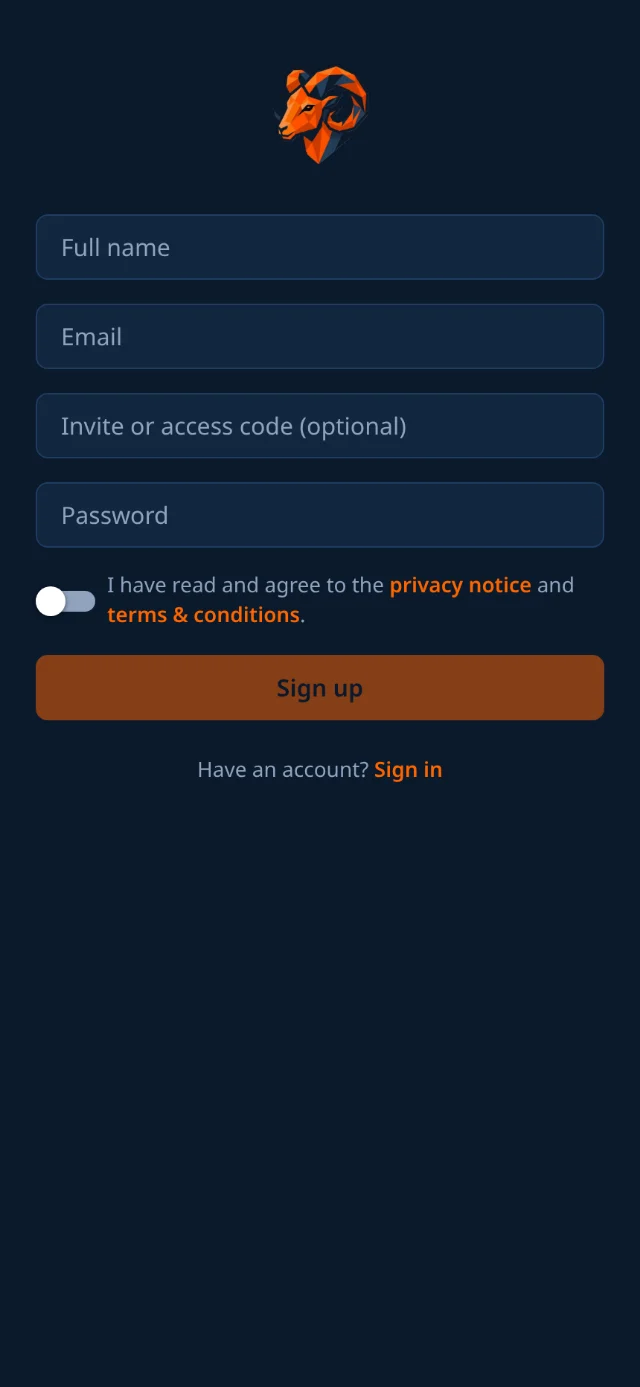
Open the app or website and choose Sign up. Enter your full name, email, and a password, agree to the privacy notice, and tap Sign up. Club owners can register the club from this website, which also picks the club's web address.

How to register โ†’
The Mouflon sign-up screen with full name, email and password fields and a privacy-notice toggle.
Sign up: the button stays disabled until you have agreed to the privacy notice.

2 Choose how you will use it

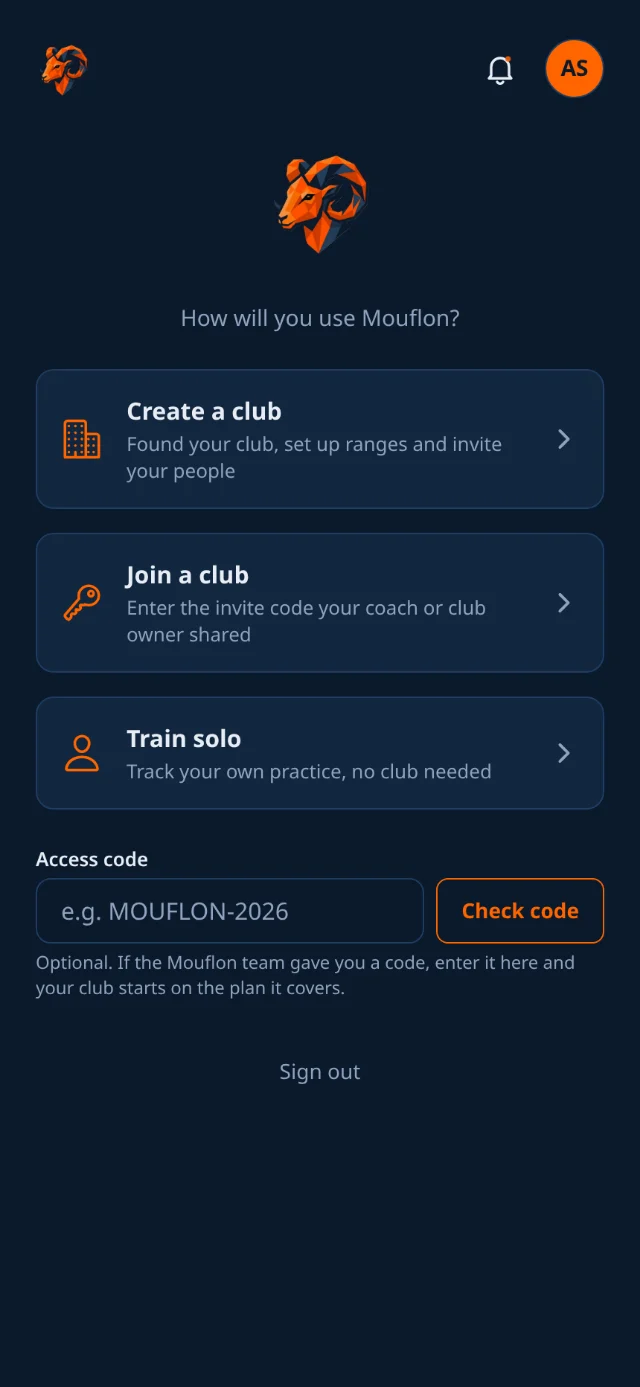
A new account has no role, so the app asks you to Create a club if you run one, Join a club if a coach invited you, or Train solo. You can always change this later, and your training history follows you.

The three paths โ†’
The onboarding chooser offering Create a club, Join a club and Train solo.
The chooser a brand-new account lands on.

3 Log your first session

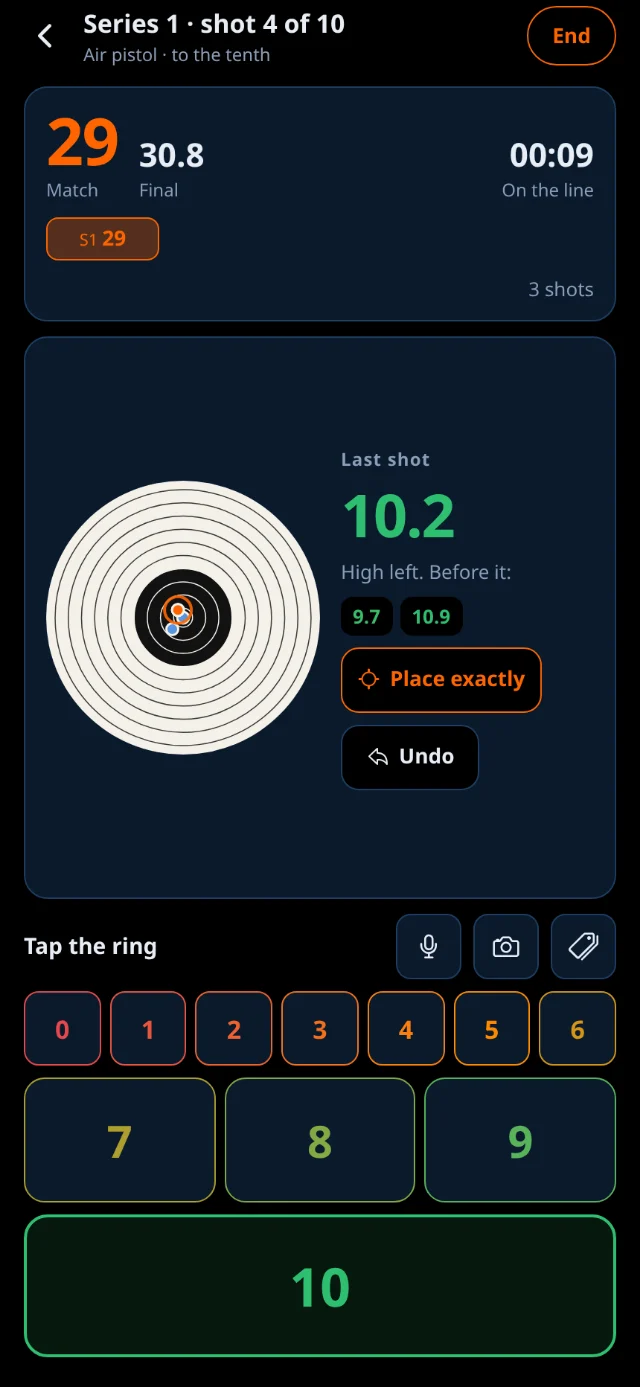
Tap Log a session on your home screen, select the session type, and start shooting. Enter each shot on the keypad or call it out loud. When finished, write a short debrief and save. These sessions build every chart in the app.

Logging, in detail โ†’
The logging keypad mid-session, showing shots entered and a running total.
The keypad, three shots into a session.

Everything in this guide

Jump straight to the thing you are trying to do.

Before you start

  • One account works on every device. The same login works on iPhone, Android, tablets, and web browsers. Athletes usually log from a phone, while coaches and owners work on a laptop with a sidebar.
  • Your role decides what you see. Sections are labeled with who they apply to.
  • Available in fifteen languages. The app follows your device language and remembers changes you make in Settings.
  • Nothing is destructive by accident. Deleting a session, closing a club, or deleting an account all ask you to confirm first.